How to Capture High-Res YouTube Thumbnails
The Professional Guide to Downloading HD Video Covers Without Blurry Screenshots
How to Capture High-Res YouTube Thumbnails for Your Blog (The Easy Way)
In the fast-paced world of digital content in 2026, visual storytelling is everything. If you’re writing a tech review, a news commentary, or a lifestyle blog, featuring the right video thumbnail can be the difference between a high click-through rate and a "bounce."
But there’s a common problem: Most bloggers use manual screenshots. Screenshots often result in blurry, low-resolution images that include play buttons, progress bars, or UI overlays. To maintain a professional aesthetic, you need the original source file. Here is your definitive guide to capturing high-resolution YouTube thumbnails perfectly every time.
Why High-Resolution Thumbnails Matter
When a creator uploads a video to YouTube, they usually upload a custom-designed image. YouTube then generates several versions of this image at different resolutions. If you grab the "default" preview, you might only get a 480 × 360 pixel image.
On modern 4K displays or high-density mobile screens (Retina displays), these low-res images look pixelated and "cheap." For a professional blog, you want the Maximum Resolution (1280 × 720 or higher), which is crisp, clear, and free of video player artifacts.
Step-by-Step: How to Get the Best Quality
1. Copy the Video URL
Navigate to the YouTube video you want to reference. Copy the URL from your browser’s address bar. Our tool supports all formats, including:
-
Standard:
youtube.com/watch?v=... -
Shortened:
youtu.be/... -
Shorts:
youtube.com/shorts/...
2. Use the HelpingWebTools Downloader
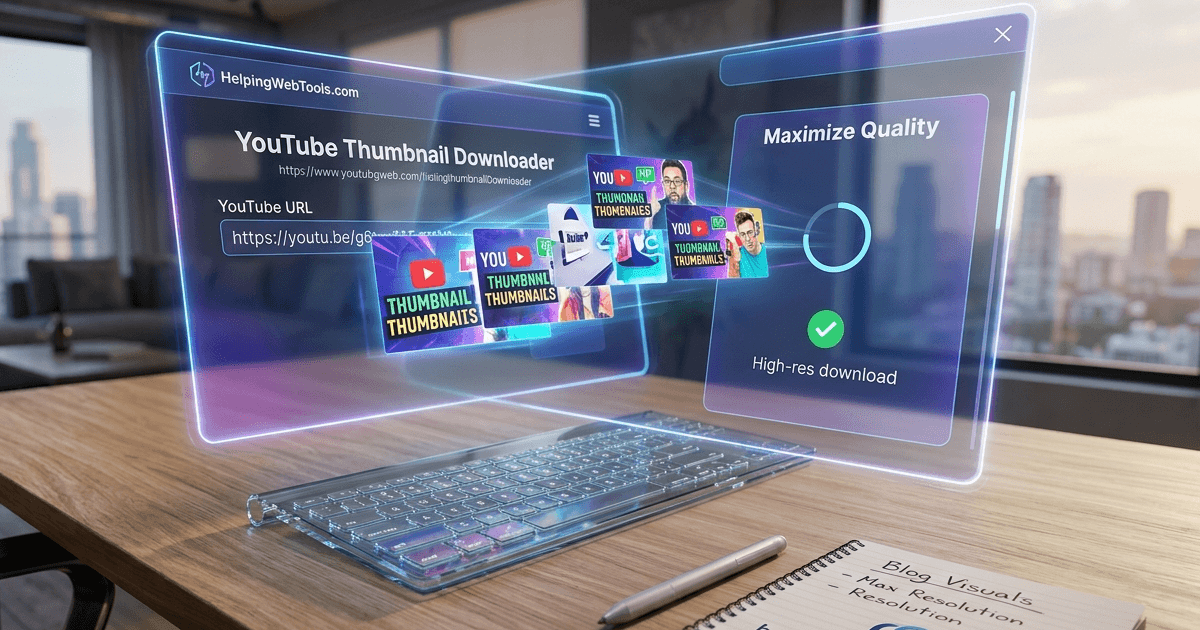
Head over to our YouTube Thumbnail Downloader. Paste your link into the search box. Our engine communicates directly with YouTube's servers to find every available version of that image.
3. Choose "Maximum Resolution" (HD)
You will see a list of options. Always aim for the HD (1280x720) version if it’s available. This is the original file the creator uploaded. If the video is very old, you may have to settle for "High Quality" (SD), but for 99% of modern videos, the HD version is your best bet.
4. Save and Optimize
Click download and save the .jpg to your device. Before uploading it to your blog, we recommend running it through an image compressor to ensure your page load speeds stay lightning-fast.
Is It Legal to Use Someone Else's Thumbnail?
This is a common question for 2026 creators. Generally, using a thumbnail for "Fair Use" purposes such as criticism, news reporting, teaching, or commentary is widely accepted.
Best Practices for Ethical Use:
-
Give Credit: Always link back to the original YouTube video.
-
Transform the Content: Don't just post the image alone; add your own unique commentary or analysis around it.
-
Don't Impersonate: Never use another creator's thumbnail to trick people into thinking the content is yours.
Beyond Blogging: Other Uses for HD Thumbnails
-
Social Media Previews: Create high-quality "Reaction" posts on X (Twitter) or LinkedIn.
-
YouTube SEO Research: Analyze the design patterns, fonts, and colors of top-performing videos in your niche.
-
Offline Archiving: Keep a visual record of educational content or tutorials for your personal library.
Conclusion
Stop settling for messy screenshots. Your blog deserves the same high-quality production value as the videos you're writing about. By using the https://helpingwebtools.com/youtube-thumbnail-downloader, you ensure that every image on your site is sharp, professional, and optimized for 2026 standards.
Need Free Privacy Policy Generator for Your Work? Try Our Free Privacy Policy Generator.
Popular Tools
Recent Posts